
This blog post is primarily for our students in the Master of Education (Teacher Librarianship) Course at Charles Sturt University, but it may be useful to others as well! I only just bothered to learn how to create a hanging indent for my references in my blog posts, so I thought I would share how to do it.
For our students – this will work in ThinkSpace as well!
Step 1. Import your reference list items
I use Zotero as my reference manager. I recommend that when you draft your posts, you do so in Microsoft Word. This allows you to use the spelling/grammar checker, but also to use your reference manager (if you use one).
I’ve copied and pasted the references from my Aesthetic and Efferent Reading post to show you how they will look when you copy and paste:
Beumer Johnson, A. (2011). Multiple selves and multiple sites of influence: Perceptions of young adult literature in the classroom. Theory Into Practice, 50(3), 215–222. https://doi.org/10.1080/00405841.2011.584032
Green, C. (2020). Extensive reading and viewing as input for academic vocabulary: A large-scale vocabulary profile coverage study of students’ reading and writing across multiple secondary school subjects. Lingua, 239(4). https://doi.org/10.1016/j.lingua.2020.102838
Krashen, S. (2020). Aesthetic reading efficient enough. Journal of English Language Teaching, 62(2), 3–4. https://www.researchgate.net/publication/341379704_Aesthetic_Reading_Efficient_Enough
McQuillan, J. (2019). Where do we get our academic vocabulary? Comparing the efficiency of direct instruction and free voluntary reading. The Reading Matrix: An International Online Journal, 19(1), 129–138.
Ponniah, J. and Priya, J. 2008. Pleasure reading and the acquisition of second language by adult ESL students. The International Journal of Foreign Language Teaching 9(1), 16-22.
Rosenblatt, L. M. (1970). Literature as exploration. Heinemann.
Schnell, J. (1990). A Comparison of aesthetic and efferent reading strategies of college students [Master of Science in Education, State University of New York College]. https://digitalcommons.brockport.edu/ehd_theses/1166
Step 2. Start with the first in your list
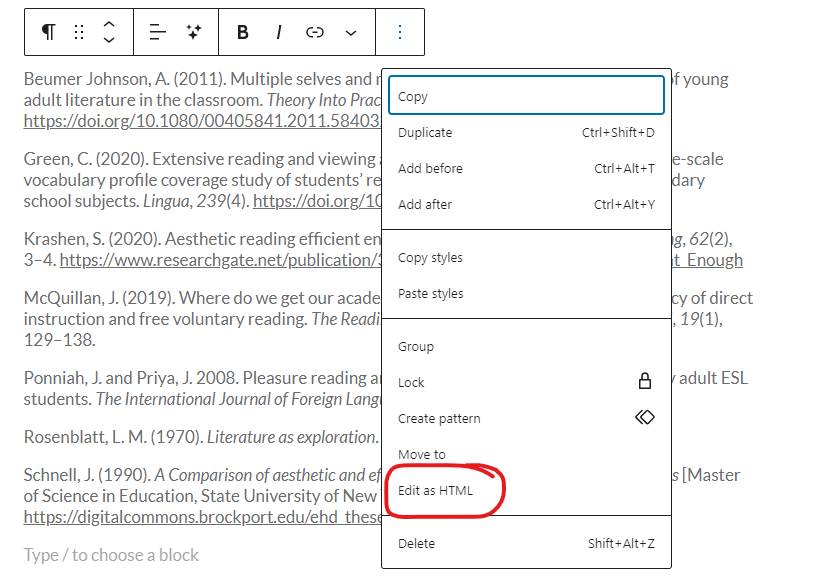
Click into the text of your first reference list item, then click on the three dots to bring down the full menu, then click on Edit as HTML
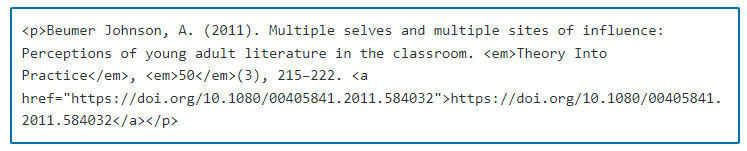
It will then look like this:
Step 3. Insert the code
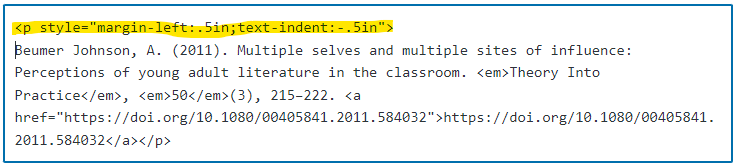
Copy and paste this code into the start of your reference list item, replacing the first <p>:
<p style=”margin-left:.5in;text-indent:-.5in”>
It will need to look like this:
Chances are that when you then click out of it, it will change to this:

Don’t worry! This is ok and we are going to fix it.
Step 4. Convert to HTML for this block
To resolve the issue you get after inserting the code, click the three dots and then select Convert to HTML
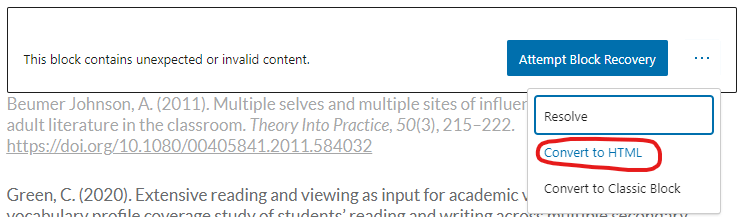
It will then look like this:

Step 5. Repeat this process for all items in your reference list
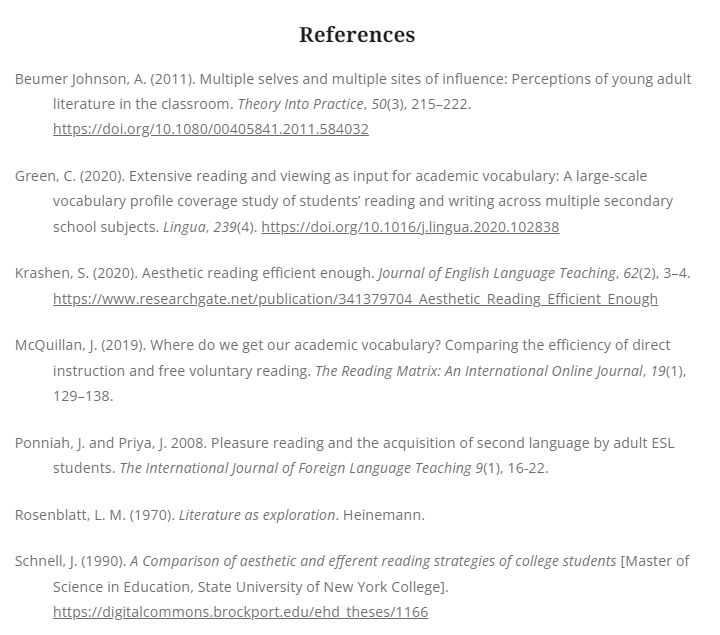
Repeat steps 2 – 4 for each item in your list. It will then look like this:

Step 6. Preview your post to double check!
You should now be able to preview your post to make sure it looks fine! Don’t forget to centre the References title too to truly follow APA 7 style.
So, what do you think? Easy enough to do? Let me know!
 The Lifting Librarian